
- What Meta catalog ads are
- Dynamic product ads are now Advantage+ catalog ads
- What you need before you start
- What goes into a good Meta product feed
- Connecting your feed to your catalog
- Why plain product photos underperform
- Designing catalog ad templates
- Formats: 1:1, 4:5 and 9:16
- Testing templates against each other
- Planning seasonal campaigns
- Selling in more than one country
- Common problems and how to fix them
- Where to go next
Meta catalog ads turn your product catalog into ads on Facebook and Instagram. You give Meta your products once, and it builds an ad for each one and shows it to the people most likely to buy it.
This guide covers what you need to get started, what your product feed should contain, how to connect it to your catalog, and how to make ads that look like your brand instead of a plain product photo. It ends with how to test one design against another, and the problems we see most often.
What Meta catalog ads are
A normal ad shows the same image to everyone. A catalog ad is built from your product catalog, so every person can see a different product: the sneakers they looked at yesterday, or a jacket similar to one they bought.
Meta shows these ads across Facebook, Instagram, Messenger and the Audience Network. The same catalog powers retargeting (people who already visited your store), prospecting (people who haven't) and Advantage+ campaigns at the same time.
The catalog does the heavy lifting. Meta reads the title, price, stock and image of each product from it, and that is what ends up in the ad. So the quality of your catalog is the quality of your ads.
Dynamic product ads are now Advantage+ catalog ads
If you have been running these ads for a while, you probably know them as dynamic product ads, or DPA. Meta has since renamed them Advantage+ catalog ads, and most of Ads Manager now uses that name.
It is the same idea under a new name. You still need a catalog, a product feed and a pixel, and the rest of this guide applies whichever name you use.
What you need before you start
There are four things to have in place:
- A Meta business account with access to the ad account and the Facebook page you advertise from.
- A catalog in Commerce Manager. Meta recommends having only one catalog, and using it for both ads and shops.
- A product feed that fills the catalog with your products and keeps them up to date.
- The Meta Pixel on your store, reporting the same product IDs as your feed. That is how Meta connects a view or a purchase on your site to a product in your catalog.
Meta can also fill a catalog straight from a Shopify or WooCommerce app. That works for getting products in, but it gives you little control over what the products look like in your ads. A product feed is where that control lives.
Read more about creating a new Meta catalog →
What goes into a good Meta product feed
Meta won't accept products that are missing details or have them in the wrong format. Every product needs an ID, title, description, availability, condition, price, link, image and brand. On top of that, a few recommended details make a real difference to your ads: a group ID that ties the sizes and colors of one product together, a sale price, and extra photos.
A few details cause most of the trouble:
- The ID has to match your pixel. If your feed says
SKU-123and your pixel reports123, Meta can't connect sales to products, and retargeting stops working. - Titles get cut off. Keep them to about 65 characters so the important part is visible.
- Images need to be at least 500 x 500 pixels. And if you change a photo, it needs a new link. Otherwise Meta keeps showing the old one.
- Out of stock products aren't shown. Keep availability accurate, so you don't pay to advertise things you can't sell.
- Variants need a group ID. Without it, Meta treats every size and color as a separate product.
You also don't have to send every product. With filters in Feedr you can leave out products that are out of stock, low margin or not worth advertising, and keep a different selection for each channel.
See the full list of Facebook product feed fields →
Read more about handling product variations in your feed →
Connecting your feed to your catalog
Once the feed exists, it has to reach your catalog. You can paste the feed link into Commerce Manager by hand, but connecting through Feedr is quicker and gives you more to work with: it's required for Template Variants, which we cover below.
After you connect your Meta business account to Feedr, you open your Meta feed, pick the catalog your ads use, and Feedr walks you through the options that fit how your catalog looks today.
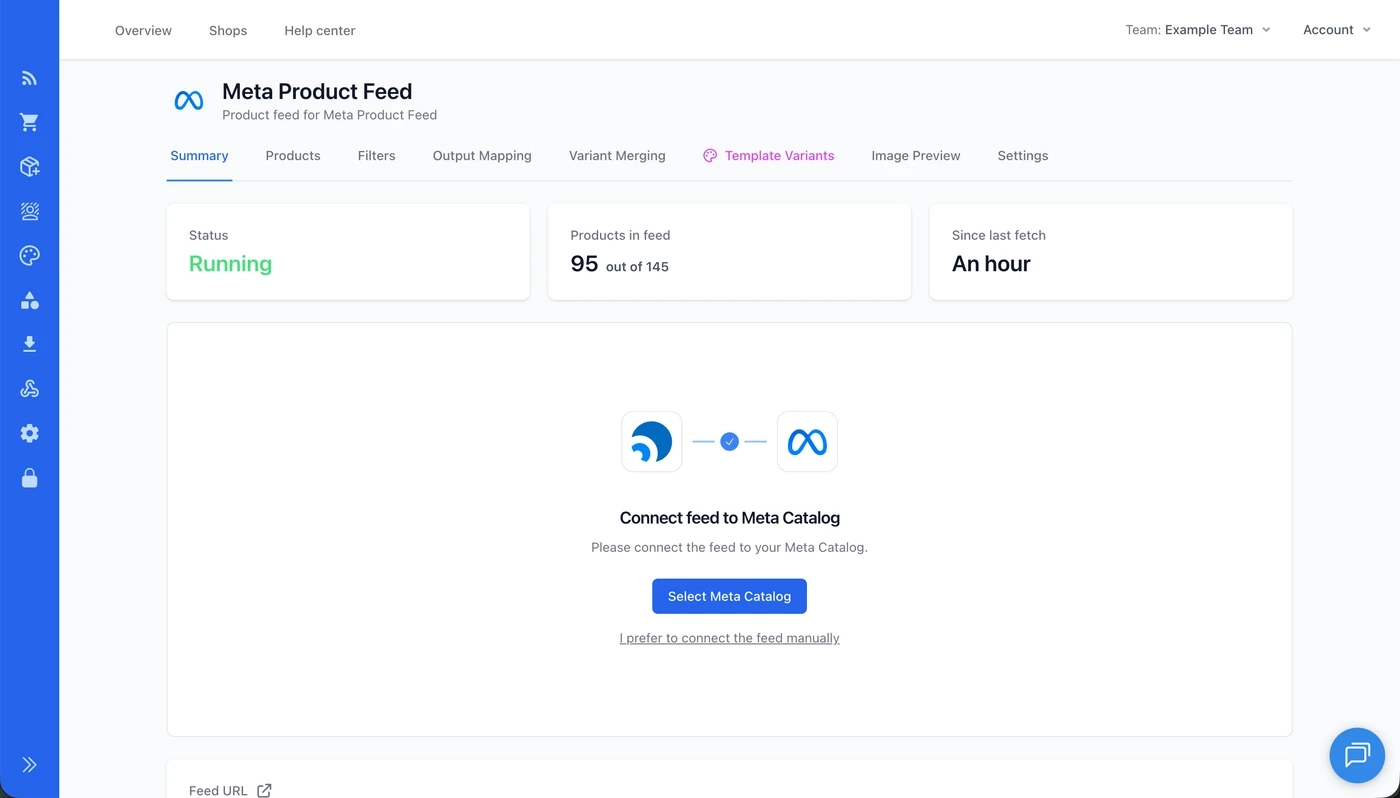
There are three common situations:
- Your catalog is new. Feedr adds your feed as the main source of products, and you're done.
- Your catalog already has a main feed. You can replace it with your Feedr feed, or add your Feedr feed next to it. Before replacing, check that the product IDs have the same format in both feeds. If they don't, Meta sees every product as new and your tracking will likely break.
- Your catalog is filled by a Shopify or WooCommerce app. You can add your Feedr feed on top of the app as a supplementary feed, so the app keeps supplying products and Feedr supplies your designed images. Meta no longer offers this from Commerce Manager, so connecting through Feedr is the only way to do it today.
When you add Feedr as a supplementary feed, make sure Meta gives Feedr's values priority over the main source, especially for the image fields. Otherwise your ads keep showing the original photos. Meta fetches your feed on a schedule, and when you've just made a change you can ask it to fetch right away from Feedr.
Read more about connecting your feed to a Meta catalog →
Why plain product photos underperform
Nobody on Facebook or Instagram is searching for your products. They are scrolling past friends, videos and other ads, so your ad has about a second to get noticed.
A product photo on a white background looks like every other store's product photo. It doesn't show your brand, it doesn't show the price, and it doesn't tell anyone that the product is on sale. The shopper has to tap to find out, and most won't.
This is where most catalog ads can improve the most, and where a well built feed pays off twice. The same data that fills your catalog, like the price, the sale price and the brand, can go on the image itself.
Designing catalog ad templates
A template is a design you make once and apply to every product in your catalog. It frames the product photo with your colors and logo, and fills in details from your product data, so each product gets its own finished ad.

In Feedr's template editor you can add:
- Prices and savings. Title, brand, price, sale price, discount and savings come from your feed, so the numbers on the image always match the product. You decide how they're formatted: decimals, rounding and currency symbols.
- Elements that only show when they apply. A sale badge only on products that are on sale, a free shipping sticker only above a certain price, or a logo only for one brand. One template covers every case, so you don't need a separate design for each.
- Your own product backgrounds. Background removal cuts the product out of the photo, so you can place it on your own colors or graphics. It's free, and you can check and fix each image before it goes into an ad.
- Images from your product data. A badge, brand logo or banner can come from a field in your product data, so each product shows its own.
When a product changes, like a new price or a new sale, the image is updated with it. Nobody has to redesign anything.
If you don't want to start from a blank page, there are ready-made templates for fashion, beauty, home, jewelry and tech that you can adjust to your brand.
See what you can do with catalog ad templates →
Browse catalog ad template examples →
Formats: 1:1, 4:5 and 9:16
Meta shows catalog ads in different spots, and each has its own shape. Square (1:1) works everywhere and is the default for the feed. Portrait (4:5) takes up more of the screen in the Facebook and Instagram feeds. Tall (9:16) fills the screen in Stories and Reels.
If you only make a square design, Meta places it in every spot anyway, which often means a small square floating on a large background in Stories. You can design each template in all three formats, so your ad fits wherever it's shown.
Read more about designing templates in multiple formats →
Testing templates against each other
It's hard to know in advance which design sells more. A bold sale badge might beat a clean look, or the plain product photo might beat both. The only way to find out is to test.
The old way was to make a separate catalog for each design. That's a lot of work, and makes the results harder to trust, because each new catalog starts learning from scratch. Template Variants let you use one catalog and show a different template in each ad, so you can test designs against each other or show different designs to different audiences.
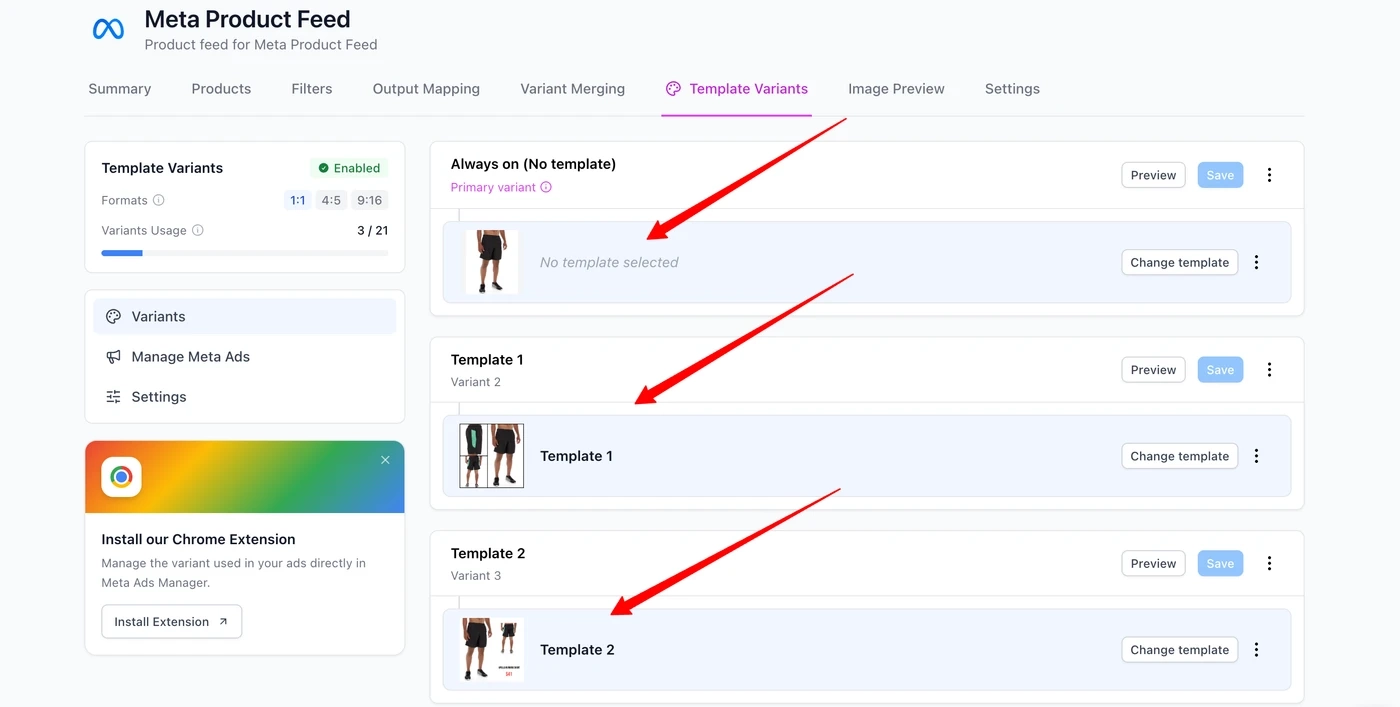
How many variants you can have depends on how many formats you use: up to 21 with square only, 14 with square and portrait, and 7 with all three formats.
A simple test looks like this. Create one variant per design, and keep the plain product photo as one of them so you know whether your templates beat it. In Ads Manager, create a sales campaign with one ad set per variant and one ad in each, all using your catalog. Then pick the right variant for each ad and use Meta's own A/B test to compare the ad sets.
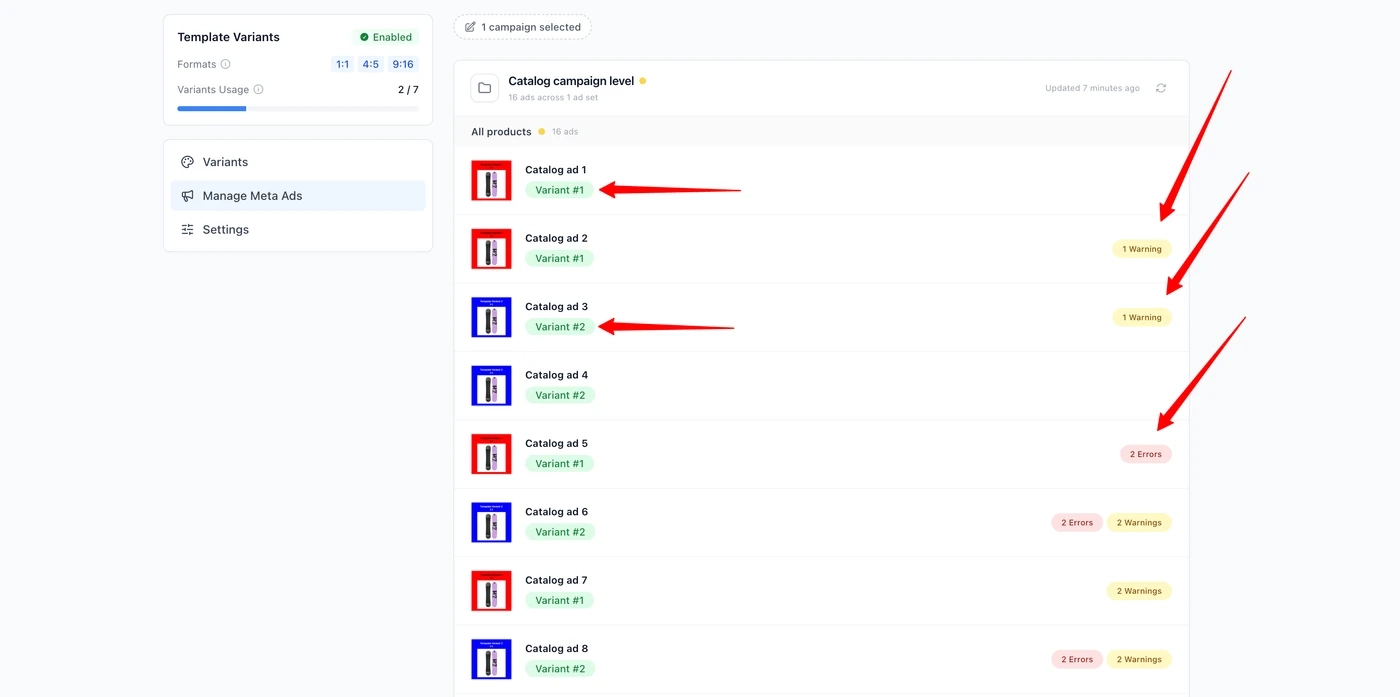
You can pick the variant for each ad in two places. In Feedr, the Manage Meta Ads page lists your catalog ads with the variant each one uses, plus any warnings or errors and how to fix them. Or you can use the Feedr Chrome extension to pick the variant right inside Meta Ads Manager while you build the ad.
When the results are in, think about what made the difference. It tells you what your audience responds to, and you can use it in your next design.
Read more about setting up Template Variants →
Read more about split testing variants →
Planning seasonal campaigns
Big sales often need more than one look. For Black Week you might want one design from Monday, a bolder one on Black Friday, another for Cyber Monday and your normal design once it's over.
With scheduled templates you set the dates each template should run, and Feedr switches your product images on those dates. When the schedule ends, your regular template comes back on its own.
Read more about planning ahead with scheduled templates →
Read our guide to preparing your Black Friday product feed →
Selling in more than one country
If you sell in several countries or languages, Meta can show each shopper the title, price and currency for their country from one catalog. You add a country or language feed for each market next to your main feed.
Template Variants work with these feeds too, so you can use a different design per country. Keep in mind that a variant is chosen per ad, so the same variant number is used in every country at once.
Read more about working with country and language feeds →
Common problems and how to fix them
Sales aren't connected to products. The IDs in your feed don't match what your pixel reports. Compare a few product IDs in Commerce Manager with the IDs in your feed, and adjust the ID in the feed if they differ.
Your ads still show the original photos. If Feedr is a supplementary feed, Meta may be giving the main source priority for the image fields. Change that in the catalog's data source settings in Commerce Manager.
A changed photo doesn't show up. Meta caches images by their link. A new photo needs a new link, or Meta keeps showing the old one for a while.
You can't switch variants on an ad. Meta doesn't allow it while "Advantage+ creative for Catalog" is turned on for that ad. Turn it off, and the variant can be changed.
Feedr can't find your new catalog. If you created the catalog after connecting Meta to Feedr, reconnect and select the new catalog so Feedr gets access to it.
Products are missing from the catalog. Check that they're in stock and not left out by your filters, then ask Meta to fetch the feed again.
Read more about fixing common Template Variants errors →
Where to go next
Catalog ads come down to two things: a catalog Meta can trust, and ads that people stop scrolling for. Get the feed right first, connect it to your catalog, and then spend your time on the creative and on testing it.
If you're ready to set it up, start with connecting your catalog to Meta through Feedr →
Comparing tools for catalog ad creative? See how we compare in Feedr vs Confect →
If you have questions along the way, ask us in the live chat on the website.