Three Steps to Prepare Your Black Friday Product Feed for 2026

By Christian Gerdes, Founder ·
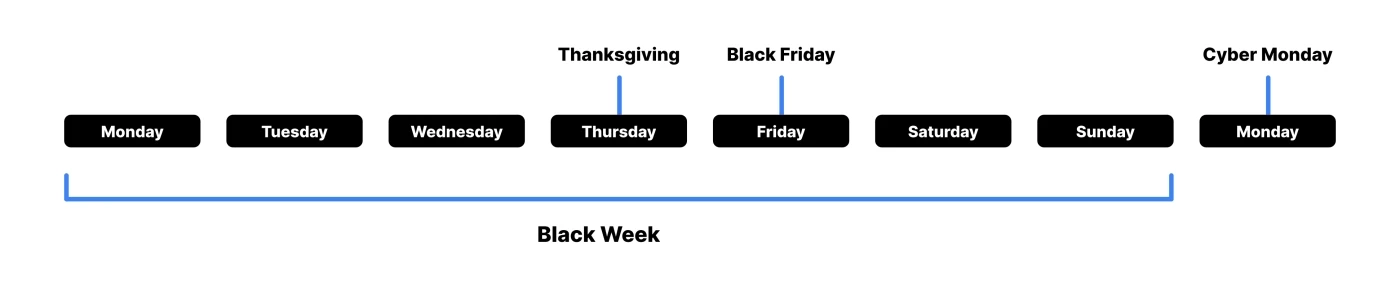
Black Friday 2026 falls on Friday 27 November, and Cyber Monday follows on Monday 30 November. Many stores run offers for the whole week before, known as Black Week, starting Monday 23 November.
Your ads on Google, Meta, TikTok and Pinterest are built from your product feed. When the sale starts, the feed decides whether shoppers see the right price, a clear sale message and products you actually have in stock. If you set it up in October, everything switches on by itself when the sale starts, and you can spend Black Week on orders instead of on your ads.
Here are the three steps.
1. Add your sale prices and sale dates
Shopping channels show a sale when your feed has two things: the sale price, and the dates the sale runs. With both in place, the channel shows the lower price during the sale and goes back to your normal price when it ends. Nobody has to change prices at midnight.
Say a t-shirt normally costs €25, and you want to sell it for €15 from the start of Black Friday to the end of Cyber Monday. You give it a sale price of €15 with sale dates from 00:00 on 27 November to 23:59 on 30 November. Before and after those dates, shoppers see €25. During them, they see €15.
Feedr brings your sale prices over from your shop. If you use WooCommerce or PrestaShop, the start and end dates of your sales come along too, so you set up the sale once in your shop and your ads follow.
If your shop doesn't keep sale dates, the sale price reaches your feed when you start the sale in your shop. In that case, it's worth checking how often each channel picks up your feed. Stock moves fast during Black Week, and paying for clicks on sold-out products is money wasted, so choose the most frequent update the channel offers.
2. Design catalog ads that show the deal
A plain product photo on a white background looks the same all year. During Black Week, shoppers scroll past a lot of offers, so your ad should show the deal at a glance: a Black Friday label, the sale price, and how much they save.
With catalog ad templates in Feedr, you design that look once and it's applied to every product in your feed. The price, sale price, discount and savings are filled in for each product, so the numbers on the image always match the product. You can also show an element only when a product is on sale, so products at full price keep a clean look.
You don't have to start from a blank page. Our template gallery has ready-made Black Friday and Black Week designs you can adjust to your brand. Here are a few ideas:



Browse our Black Friday templates →
See what you can do with catalog ad templates →
3. Schedule your templates before the week starts
Black Week often has more than one look. You might want a Black Week design from Monday, a bolder Black Friday design on Friday, a Cyber Monday design after the weekend, and your normal design once it's all over. Changing that by hand means logging in late at night, for every feed.
Scheduled templates do it for you. You pick the dates each template should run, and Feedr switches your product images to it on those dates. When the sale ends, your regular template comes back on its own. You can line up several templates in a row, so a schedule for 2026 could look like this:
- Black Week template from Monday 23 to Thursday 26 November
- Black Friday template on Friday 27 November
- Black Week template again on Saturday 28 and Sunday 29 November
- Cyber Monday template on Monday 30 November
- Your regular template from Tuesday 1 December
Your images change the next time your feed updates after each date, which is one more reason to keep your feed updating often during the week.
Read more about planning ahead with scheduled templates →
For step-by-step setup, see how to schedule templates →
Get all three steps done by early November. That gives you time to preview your ads, fix anything that looks off and let each channel pick up the changes before Black Week starts. If you get stuck, ask us in the live chat on the website.