How to A/B Test Catalog Ad Templates on Meta

By Christian Gerdes, Founder ·

A bold sale badge, a clean brand look or the plain product photo: it's hard to know in advance which one sells more. The only way to find out is to show each design to real shoppers and compare the results.
This guide shows you how to do that on Facebook and Instagram. You'll set up a variant for each design in Feedr, build a small test campaign in Meta Ads Manager, and let Meta's own A/B test pick the winner.
Why test templates in one catalog
The old way to test designs was to make a separate catalog for each one. That's a lot of work, and it makes the results harder to trust, because every new catalog starts learning about your shoppers from scratch.
Template Variants let you keep one catalog and choose which template each ad shows. The products, the tracking and what Meta has already learned stay the same. Only the design changes, so the design is what you're actually testing.
You can also use variants outside of a test, for example to show a different design to new visitors than to returning customers.
What you need before you start
To follow along, you need:
- Your Meta business account connected to Feedr.
- Your Meta feed connected to your Meta catalog through Feedr. Variants need this connection to work.
- At least one template designed in Feedr.
If you haven't set up the connection yet, the help center walks you through it.
Read more about connecting your Meta business account →
Read more about connecting your feed to a Meta catalog →
Step 1: Create a variant for each design
Open your Meta feed in Feedr and go to the Template Variants tab. There's always at least one variant, and you choose which template it uses with Change template. Click Add variant to create more, give each one a name, and pick its template.
Keep one variant with no template, so the plain product photo is part of the test. That tells you whether your designs beat it at all. Name each variant after its design, so the results are easy to read later.
In this example we test three variants of the same shoes: the plain photo, an Everyday design and a Testimonial design.
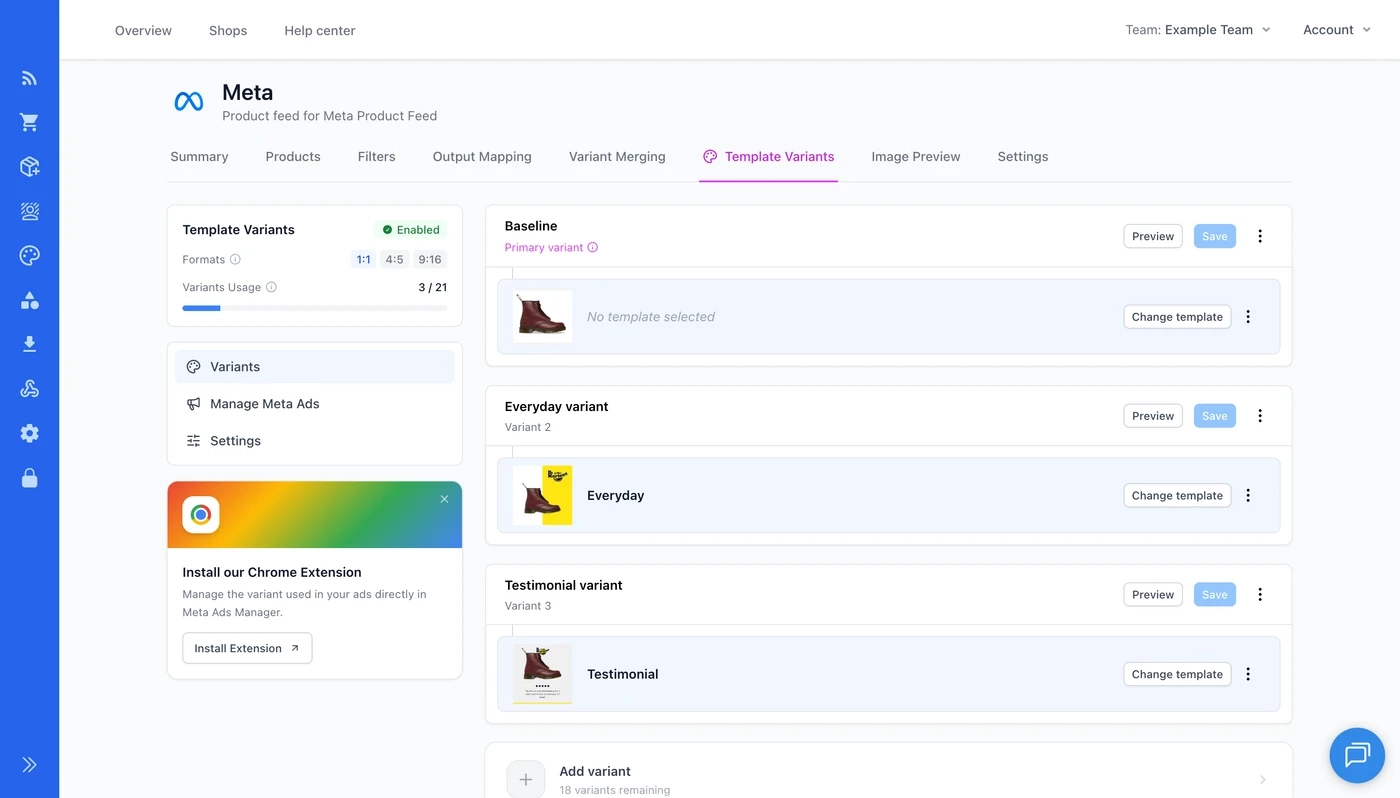
How many variants you can have depends on how many formats your templates use: up to 21 with square (1:1) only, 14 with square and portrait (4:5), and 7 with square, portrait and tall (9:16).
If you haven't designed your templates yet, see what you can put on your images with catalog ad templates →
Read more about configuring variants →
Step 2: Build the test campaign in Ads Manager
In Meta Ads Manager, create a new campaign with Sales as the objective. Give it one ad set for each variant, with one ad in each. For our three variants, that's three ad sets and three ads. Make sure every ad uses your catalog.
Number the ad sets and name each ad after its variant, so you can tell them apart in the results.
When everything is set up, switch the campaign to draft mode and publish it. Publishing is what lets you pick a variant for each ad, and draft mode keeps it from spending money before the test starts.
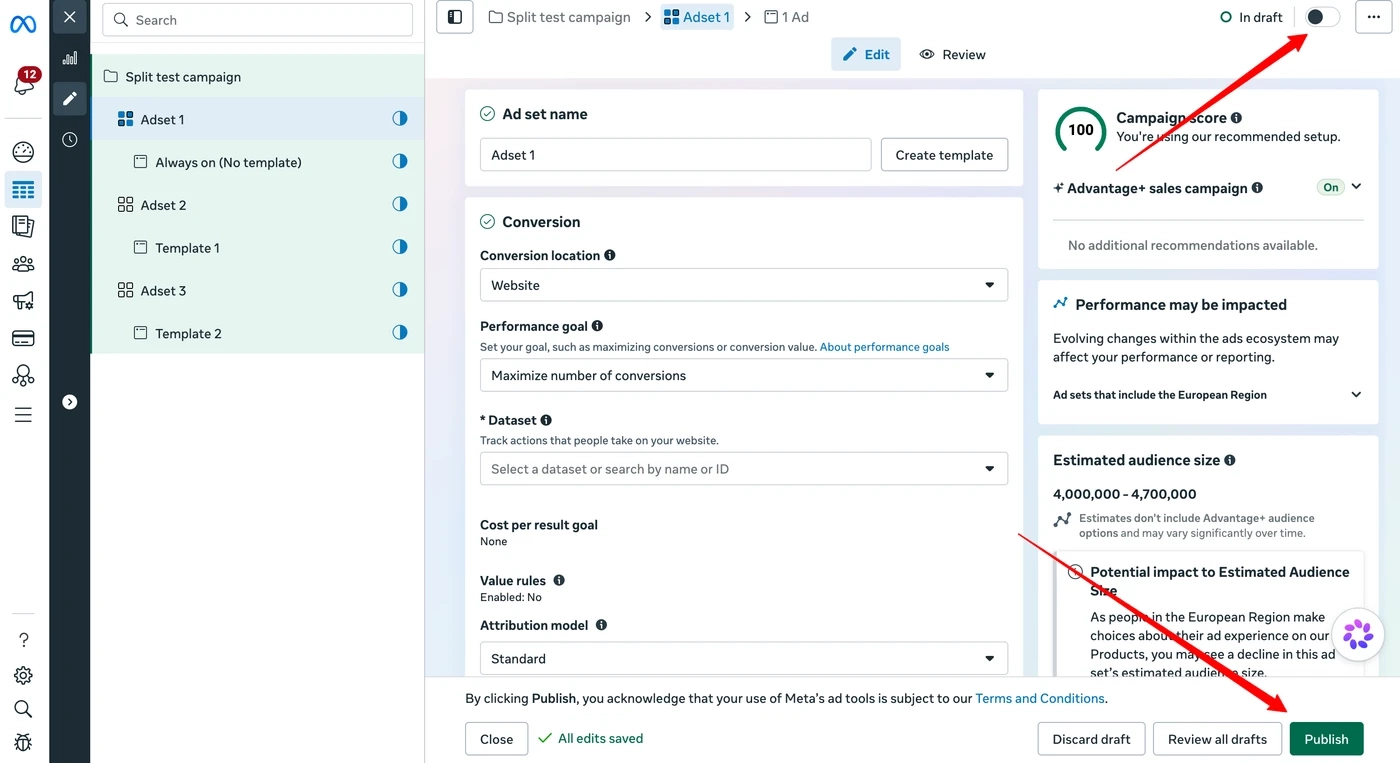
Step 3: Pick a variant for each ad
Now tell each ad which variant to show. You can do it in Feedr or directly in Ads Manager, whichever suits you.
In Feedr, open Manage Meta Ads in the Template Variants tab and choose the campaigns you want to work with. You get a list of your catalog ads with the variant each one uses, a small preview, and any warnings or errors. Click an ad to change its variant. If an ad has a problem, you see a short explanation of what's wrong, and you can fix it by selecting it and clicking Fix issues.
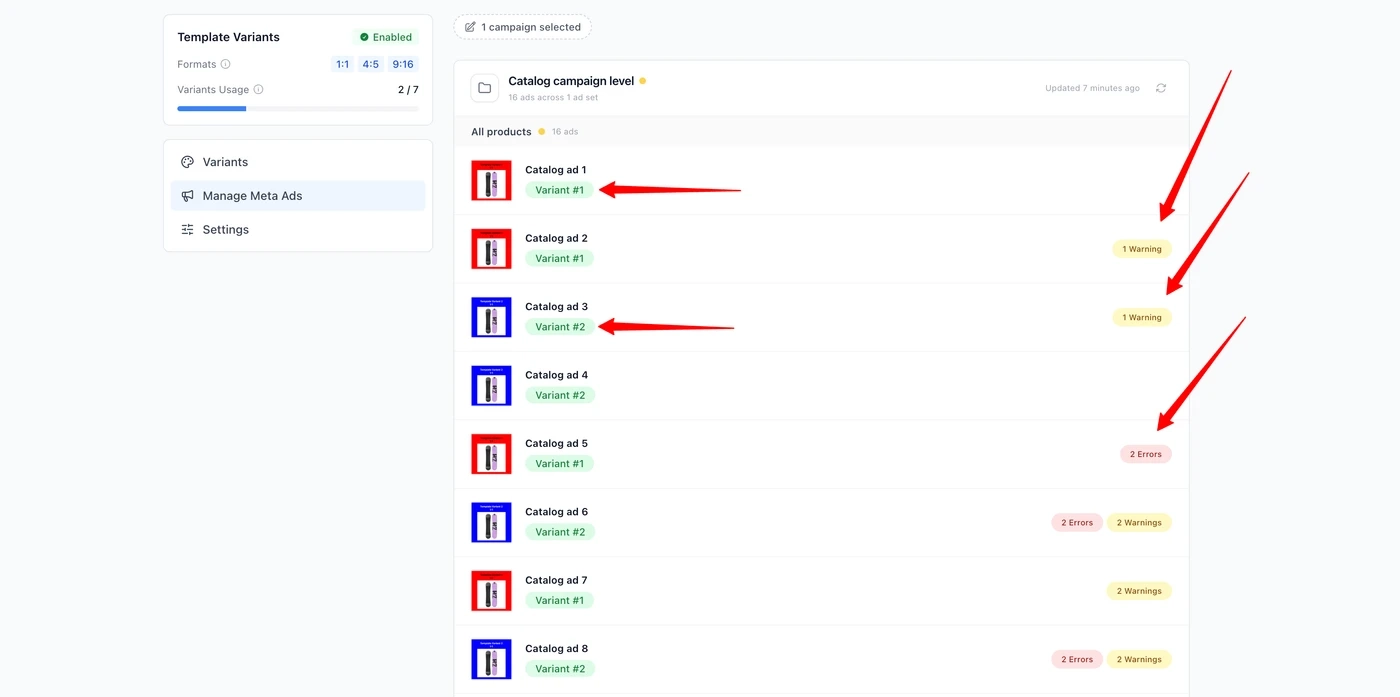
In Ads Manager, install the Feedr Chrome extension and log in with your Feedr account. When you edit an ad that uses your catalog, a Feedr section appears under Ad setup. Pick the variant there, and the ad preview updates to show it. The extension shows the same warnings and errors as Feedr, so you don't have to switch back and forth.
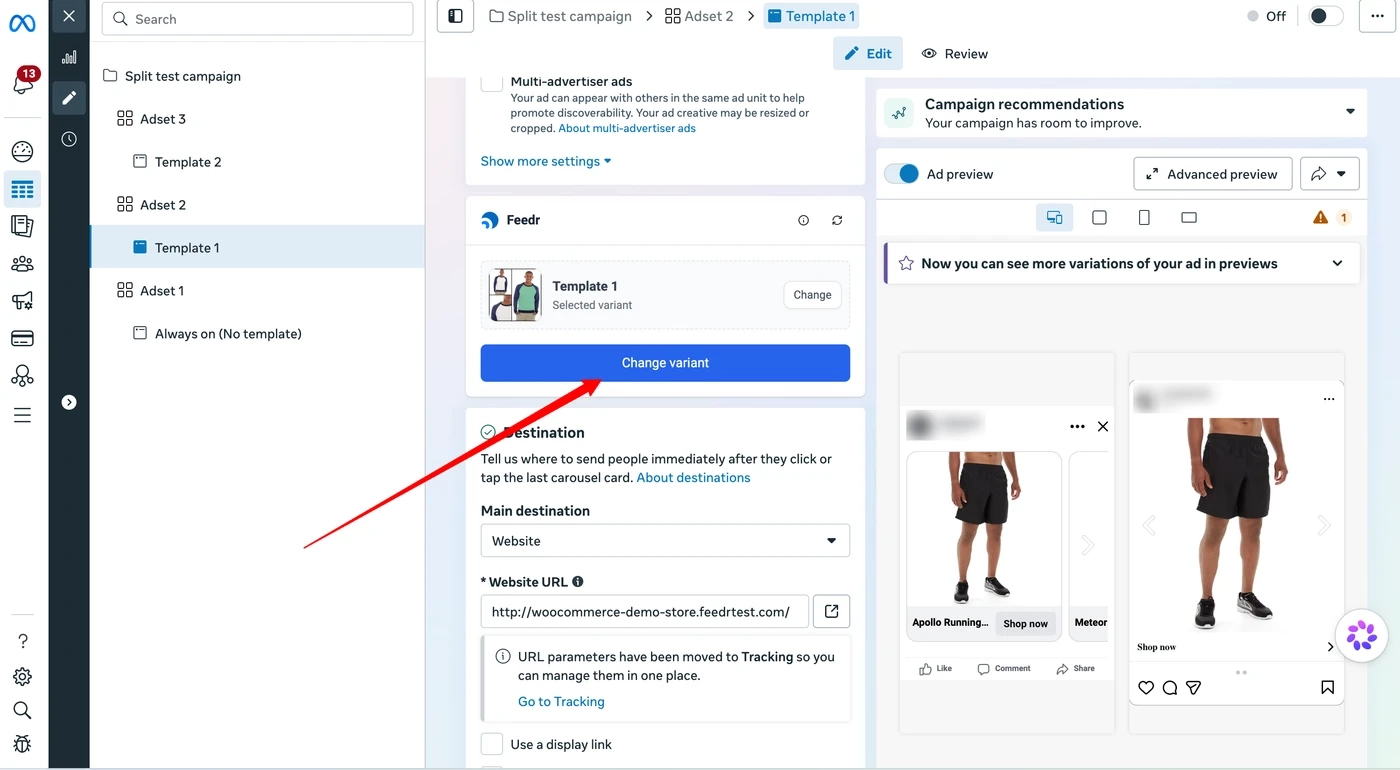
Each time you change a variant or fix an issue, Meta reviews the ad again. That usually only takes a few minutes, and Meta sends you an email when it's approved.
Read more about using the Chrome extension →
Step 4: Start the A/B test in Meta
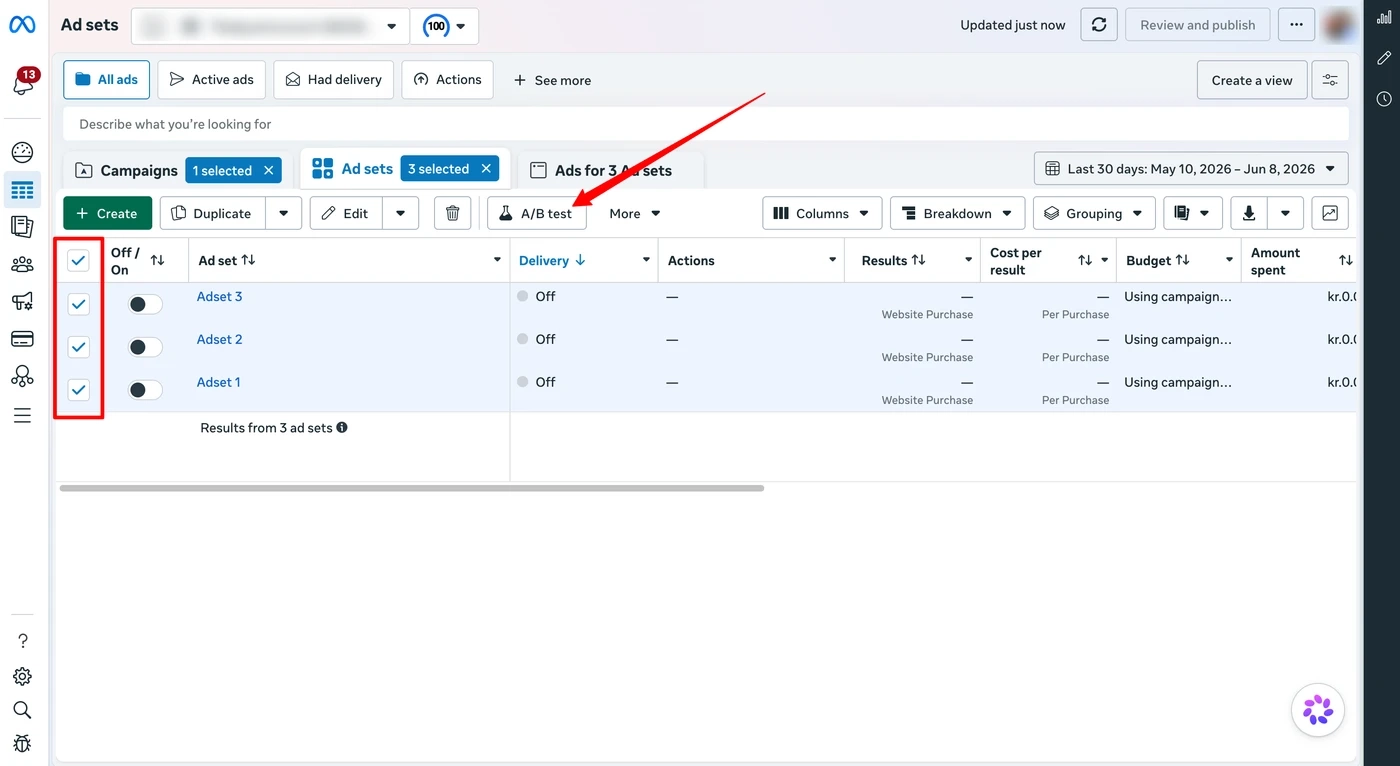
Go to the ad sets in your campaign, select all of them and click A/B test.
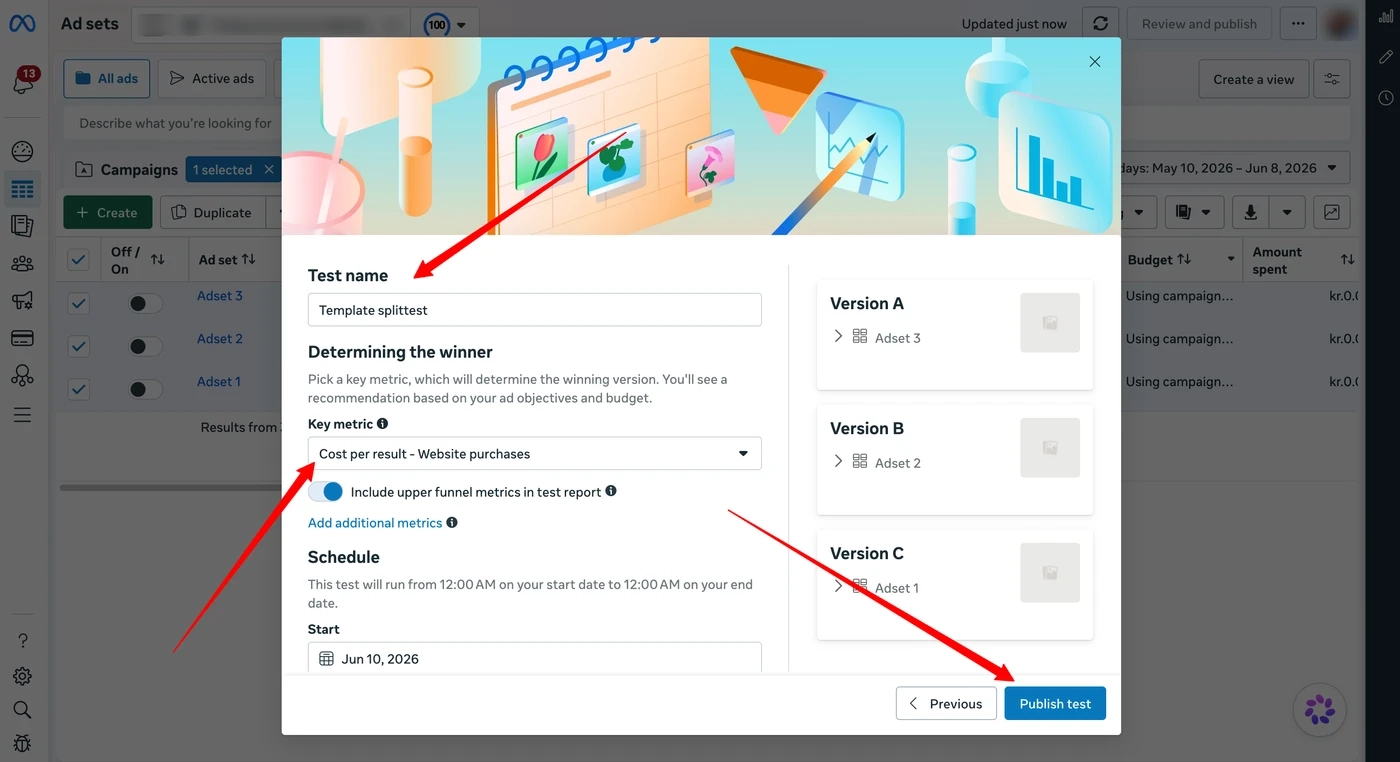
Check that every variant you want to test is included and click Next. Then give the test a name, choose the result that decides the winner, like cost per purchase, and set how long it should run. Click Publish test, and Meta splits your audience between the ad sets so each design gets a fair chance.
Read more about split testing variants →
Reading the results
Give the test time to finish before you decide. When the results are ready, Meta shows you which ad set won on the result you chose.
Then think about why it won. Was it the price on the image, the brand colors, the review? That tells you what your shoppers respond to, and you can use it in your next design. Once you have a winner, you can put it in all your ads by giving them that variant.
If something doesn't work
You can't switch the variant on an ad. Meta doesn't allow it while "Advantage+ creative for Catalog" is turned on for that ad. Turn it off, and you can change the variant.
You can't see the Feedr section in Ads Manager. Check that the Chrome extension is installed and logged in, that your Meta business account is connected in Feedr, and that the ad uses the same catalog as your Feedr feed. Then refresh the page.
Feedr can't find your catalog. If you created the catalog after connecting Meta to Feedr, reconnect and select the new catalog so Feedr gets access to it.
You can't connect your business account. You need to be an admin of the Meta business account. If you're not, you can send the admin a link so they can make the connection for you.
Read more about fixing common Template Variants errors →
If you get stuck along the way, ask us in the live chat on the website.